
Custom Gaming PCs & Upgrades in Pittsburgh, PA
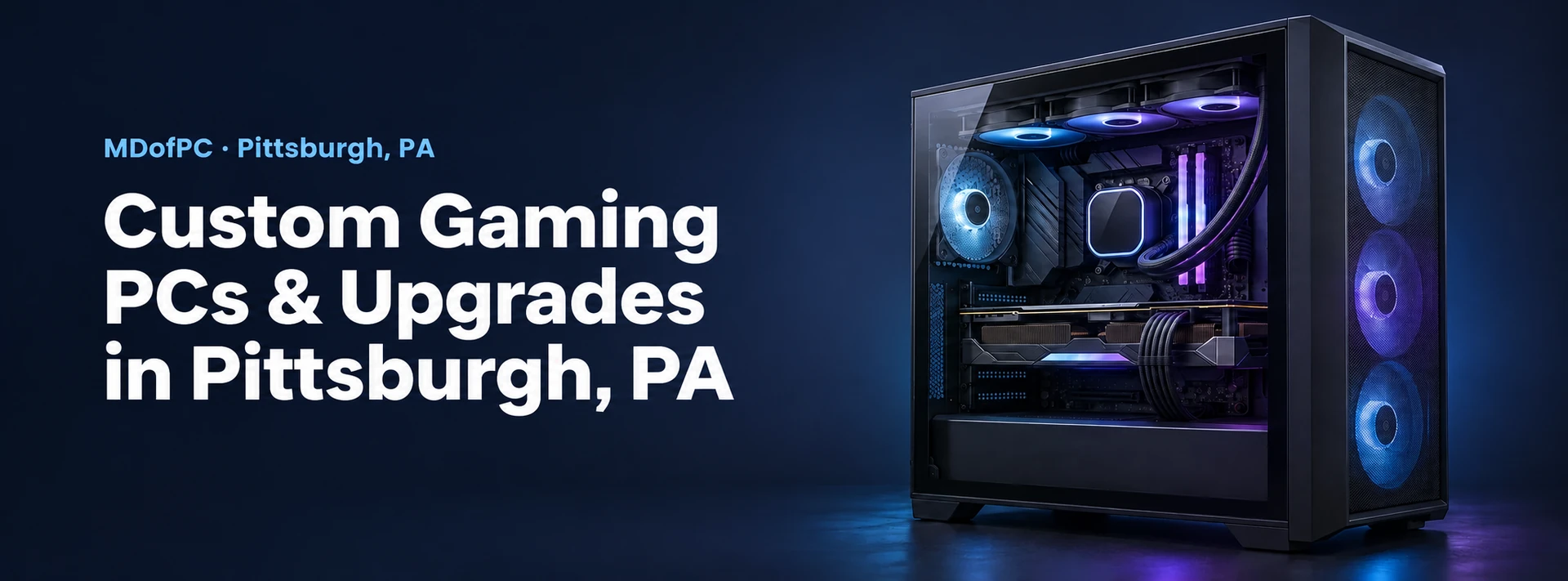
MDofPC helps Pittsburgh-area gamers plan custom desktop builds and upgrade the PCs they already own. Tell us what you play, the monitor you use, and what you want to spend. We’ll help you choose parts that fit.
Wi-Fi and Bluetooth are included on any build by request. Optional high-power adapters are available for an extra fee.
Ready to plan your build? Tell us what you play and what you want to spend.
Fill Out the Gaming PC Build Form Ask About a Gaming PC
Starter examples: $200 for a Dell or HP in a plain black case or $300 for a case with lighting and a glass panel. Local pickup only.
How We Test Every Computer
Every computer goes through a 24-hour burn-in test to check stability under sustained use. We also run hardware diagnostics to check for component issues before the computer goes to the customer.
Custom Computer Build Warranty
All MDofPC custom computer builds include a warranty or exchange based on the build price.
- Builds up to $999 include a 90-day warranty or exchange.
- Builds priced at $1,000 or more include a one-year warranty or exchange.
Computer Trade-Ins
MDofPC accepts computer trade-ins. Contact us about your trade-in and tell us your computer’s make, model, and condition.
Gaming PC Upgrade Options
The right upgrade depends on what you want to improve. A faster GPU can help with frame rates and graphics settings, an SSD can shorten load times, and better cooling can reduce temperatures and fan noise.
Graphics and processing
- Graphics card (GPU). Upgrade for higher frame rates, better graphics settings, or a higher-resolution monitor. Check case clearance, power connectors, and power supply capacity.
- Processor (CPU). Upgrade for CPU-limited games, streaming, or multitasking. Check the motherboard socket, chipset, BIOS support, and cooler.
- Motherboard and platform. Move to a newer platform for processor support, additional M.2 slots, faster connectivity, or more expansion. A platform upgrade may also require new memory or a cooler.
Memory and storage
- Memory (RAM). Add capacity or replace the existing kit. Check DDR generation, supported speeds, module slots, and capacity limits.
- System drive. Replace a hard drive or older SSD with a compatible SATA or NVMe SSD to improve startup and loading times.
- Additional storage. Add a second SSD for your game library or a larger hard drive for recordings and backups. Check available slots, ports, and drive bays.
Cooling, power, and case
- CPU cooler. Install a larger air cooler or an all-in-one liquid cooler. Check socket mounting, radiator support, and clearance.
- Case airflow. Add or replace intake and exhaust fans, improve fan placement, and replace damaged filters.
- Thermal maintenance. Replace aging thermal paste, clean dust buildup, and tune fan curves when temperatures or noise are a problem.
- Power supply (PSU). Upgrade for a more demanding graphics card or processor, or replace an aging unit. Check form factor, wattage, and connectors. Use cables specified for the new PSU.
- Case and layout. Move components into a case with better airflow, more room, or easier access. Check motherboard size, GPU length, and cooler clearance.
- Lighting and cable management. Add compatible RGB or ARGB fans, lighting strips, controllers, cable combs, or a GPU support bracket.
Networking, ports, and accessories
- Wi-Fi, Bluetooth, and Ethernet. Add a compatible wireless adapter, improve antenna placement, or install a faster Ethernet adapter where the network supports it.
- USB and expansion cards. Add compatible USB-A or USB-C ports, a capture card, or a dedicated sound card. Check available slots and bandwidth.
- Monitor. Move to a higher refresh rate, resolution, or variable refresh rate display. Check what the graphics card, monitor, and cable support.
- Gaming and streaming accessories. Upgrade your keyboard, mouse, controller, headset, speakers, microphone, webcam, or capture setup.
- Backup power. Add a suitably rated UPS for short outages and time to shut down safely.
Software and system setup
- Windows, drivers, and firmware. Update or reinstall Windows, install current graphics and chipset drivers, and update the BIOS or firmware when required for compatibility.
- Game and system tuning. Adjust game settings, frame-rate limits, memory profiles, and cooling settings based on stability and temperatures.
- Drive migration and setup. Plan backups, clone or reinstall the operating system as appropriate, and move game libraries to the new drive.
What Can You Upgrade in a Gaming Laptop?
On some models, you can replace the RAM, SSD, wireless card, or battery. Many laptops have soldered memory, and most have processors and graphics chips that are fixed to the motherboard. The exact model determines which upgrades are possible.
What to Send Us Before Buying Parts
Send your PC make and model or current parts list, the games you play, your monitor resolution and refresh rate, and your budget. If your system crashes, overheats, or stutters, tell us when it happens so we can help identify what is holding it back. Prebuilt desktops can use proprietary parts, so we check fit and compatibility before recommending an upgrade.
Gaming PC Build Gallery
Jump to the full build archive
Explore featured gaming PC builds. Select any photo to open the full-size image, or open a walkthrough to see the build on video.
White Custom Build Walkthrough
Open the walkthrough in Google Drive · Browse more gaming PC photos and videos
Black Gaming PC with ARGB Side Lighting
Watch the Black Gaming PC with ARGB Side Lighting walkthrough
White CLX Gaming PC
Watch the White CLX Gaming PC walkthrough
Aura Gaming PC with Three ARGB Fans
Watch the Aura Gaming PC with Three ARGB Fans walkthrough
Panoramic Glass Gaming PC
More Gaming PC Builds (photos and videos)
Open a build to see its photos and videos.
Gaming PC build · 2/8/26 (5 photos)
Gaming PC build · 3/18 (8 photos · 2 videos)
Watch build video 1
Watch build video 2
Gaming PC build · 5/2 (6 photos · 2 videos)
Watch build video 1
Watch build video 2
White Custom Gaming PC (3 photos)
Gaming PC build · 6/12 (4 photos)
Gaming PC build · 6/30 (15 photos)
Gaming PC build · 10/24/26 (7 photos)
Gaming PC build · 10/30/2026 (4 photos)
Gaming PC build · 11/8/2026 (4 photos)
Gaming PC build · 11/10/2026 (5 photos)
Aura Gaming PC with Three ARGB Fans (1 photo)
Black Gaming PC with ARGB Side Lighting (1 photo)
White CLX Gaming PC (1 photo)
Corsair Gaming PC (11 photos)
Glass Front Gaming PC with Three Fans (7 photos)
Panoramic Glass Gaming PC (5 photos)
Hologram Gaming PC (3 photos)
Gaming PC Calculators
FPS Calculator
Use the PC Builds FPS Calculator to estimate frame rates for your processor, graphics card, and games. Actual performance can vary with resolution, graphics settings, and the rest of your system.
Open the FPS Calculator (opens in a new tab)
Bottleneck Calculator
Estimate whether your processor or graphics card may limit performance at your chosen resolution.
Open the Bottleneck Calculator (opens in a new tab)
Power Supply Calculator
Estimate how much power your parts need when choosing a power supply.
Open the Power Supply Calculator (opens in a new tab)
RAM Calculator
Estimate how much memory you may need for the games and apps you use.
Custom Builds and Gaming PC Upgrades
Planning a new build? Share the games you play, your target resolution and refresh rate, and whether you also stream or edit video. Those details help determine where to put your budget.
Upgrading your current desktop? Send your PC model or current parts list. We can discuss graphics, memory, storage, cooling, and power supply compatibility before you buy parts.
Having trouble in games? Let us know if you’re seeing crashes, overheating, or stuttering, and when the problem started.